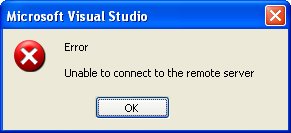
Can be caused when workspace is not mapped correctly.
Resolution:
- Select TFS server in Team Explorer.
- Go to File > Source Control > Workspaces.
- Highlight your computer name and click 'Edit'.
- Select the root of the server, and select the local root you want to use (ie. visual studio 2005/projects).
If the server no longer exists, you will not be able to remove the workspace with the tf workspace utility. In this case, you need to open the versionControl.config file found here:
C:\Documents and Settings\[user]\Local Settings\Application Data\Microsoft\Team Foundation\1.0\Cache\versionControl.config
Once you have opened the file in a text editor, remove the references to your old server by removing the
Once you have done this, complete the steps above to set up your workspace.
No comments:
Post a Comment